.png)

There’s a small gap in how most teams work today. Customer data lives in Salesforce, while discussions happen in Slack. You move between the two all day: checking details, sharing updates, and then going back to make changes. It works, but it’s not seamless. Over time, this back-and-forth slows things down and breaks the flow of work.
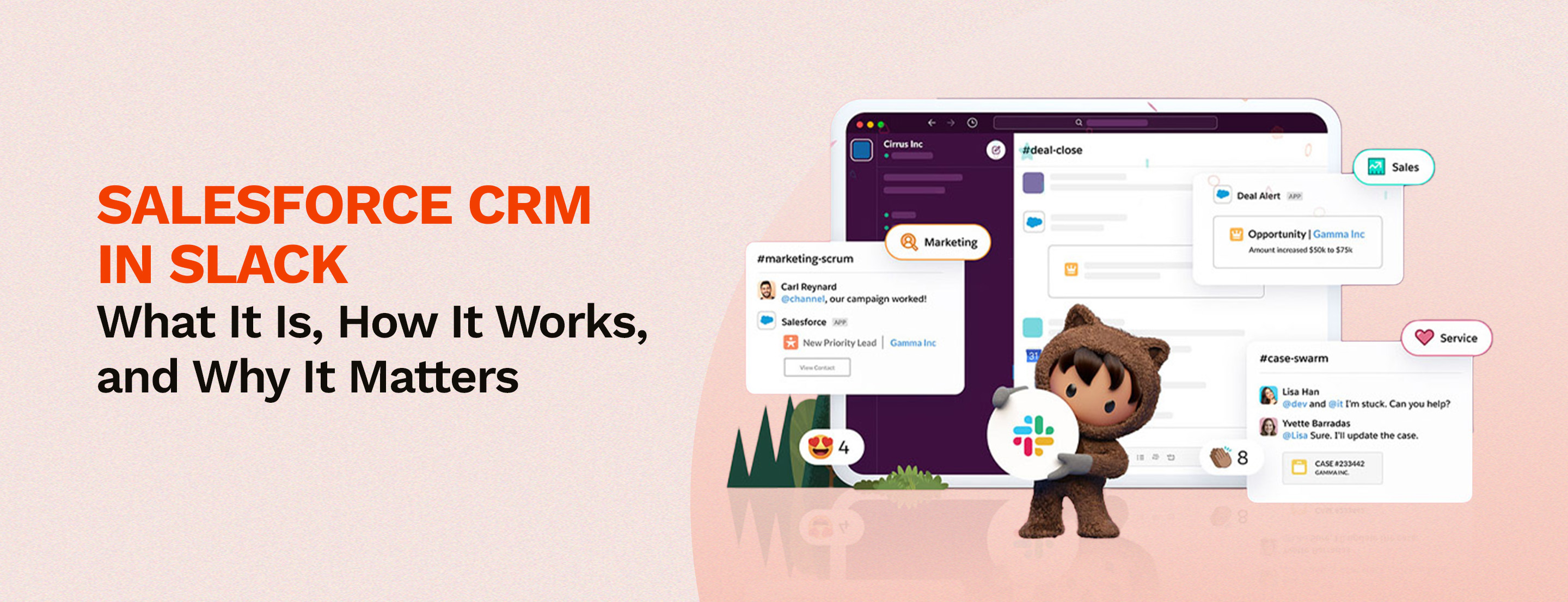
This is exactly the problem Salesforce CRM in Slack is trying to solve. It brings Salesforce directly into Slack, creating a more connected workspace where teams can collaborate around customer data without constantly switching tools.
In this blog, we’ll look at how Slack CRM works and what it changes for teams managing customer relationships every day.
Slack CRM changes how teams work with their CRM. Instead of logging into Salesforce separately, teams can access and work with customer data directly inside Slack, right where conversations already happen.
At the centre of this setup is a connected workspace that brings together:
all in one place.
This makes it easier to stay on top of work without jumping between tools.
For example, before a meeting, Slack can pull together useful context from Salesforce and past conversations. Instead of searching across different tools, everything you need is already there, so you can focus on the discussion, not the preparation.
In simple terms, Slack CRM works across four key layers:
It’s not a separate CRM. It’s simply Salesforce becoming part of how teams already work in Slack.
Slack CRM brings together multiple capabilities that help teams manage customer relationships directly inside Slack. These features are not limited to viewing data, they support collaboration, updates, automation, and visibility across teams.
Below is a structured breakdown of the key features based on how teams actually use them.
Slack CRM introduces a CRM interface inside Slack itself. Once users are mapped between Slack and Salesforce, they can:
However, what each user can see still depends on their Salesforce access and list view permissions.
At the center of Slack CRM are Salesforce Channels. Each channel is linked to a single Salesforce record, creating a shared workspace where:
These channels are available in both Slack and Salesforce, making them more than a basic integration, they act as a shared working space.
Salesforce Channels are designed differently from regular Slack channels. They include:
The availability of some features, like summaries, depends on the Slack plan being used.
Slack CRM is flexible when it comes to the type of data it can handle. Teams can:
The only exception is user records, which are not supported. There is one technical condition, objects must be supported by Salesforce’s UI API to work inside Slack.
Slack CRM allows teams to control how record information appears inside Slack. Features include:
Previews are generated based on the permissions of the person sharing the record. Admins can also restrict preview details and set organization-level controls. This helps balance visibility with data control.
Slack CRM supports automation through Workflow Builder. Teams can create workflows that:
Some of these automation capabilities are available only on Business+ and Enterprise plans.
Automation is not limited to Slack. Using Salesforce Flow, teams can:
These are often used as examples in documentation, so exact behavior may vary based on setup.
For sales teams, Slack Sales Elevate adds a dedicated layer of functionality. It includes:
It is tightly connected with Sales Cloud and has separate pricing and plan requirements.
Slack CRM also supports analytics workflows. With CRM Analytics for Slack, teams can:
There are also references to Einstein Discovery workflows, although these depend on how the system is configured.
Slack CRM extends into analytics through Tableau integration. Teams can:
Some newer capabilities, such as deeper Tableau integrations, are mentioned in product material, but exact availability depends on packaging and setup.
Slack CRM includes built-in AI capabilities through Slack AI. These features support:
These are designed to help users quickly understand conversations and context without reading everything manually.
Slack CRM also includes Agentforce in Slack, which introduces agent-based workflows. Teams can:
These agents operate based on Salesforce permissions and require setup across both Slack and Salesforce environments.
Slack CRM is also positioned for smaller or growing teams that want basic CRM functionality directly inside Slack. This includes:
However, some aspects are not fully defined in public materials, such as:
Slack CRM brings data, collaboration, and workflows into one place, so teams can manage customer relationships without constantly switching between tools.
One of the biggest changes with Slack CRM is how work actually happens. Instead of treating CRM as something to update after the work is done, it becomes part of the work itself.
With Slack CRM, updates don’t have to wait. Teams can:
This means CRM is no longer just a system where data is stored later. It becomes something that moves alongside real work, in real time. A big part of making this possible is Slackbot.
Instead of manually switching to Salesforce to log updates, Slackbot allows users to:
In simple terms, Slackbot acts as the bridge between conversations and CRM actions. It helps turn everyday messages into structured updates, so teams don’t have to rely on memory or go back later to fill in details.
Slack CRM also fits naturally into customer support workflows. Teams can connect service inboxes and start handling customer queries directly in Slack. Instead of switching tools or searching for context, everything is available in one place.
Slackbot supports this by:
This leads to faster replies and a smoother support experience overall.
One of the core ideas behind Slack CRM is simple, CRM shouldn’t feel like extra work. Instead of logging in just to update records, users can:
By bringing CRM into Slack, Salesforce is trying to make it feel like a natural part of everyday work rather than a separate task.
In most organizations, teams work in different tools. Some spend more time in Slack, others in Salesforce. This creates gaps in visibility and slows things down. Slack CRM helps by creating a shared space where:
This reduces silos and keeps everyone aligned.
At the center of this setup are Salesforce Channels. These are not regular Slack channels. They are built specifically for CRM work and are linked directly to Salesforce records like accounts, opportunities, or cases.
Each channel brings together:
This creates a single place where teams across sales, service, and operations can work together with full visibility.
Setting up Salesforce CRM in Slack is mostly about making a few clear decisions upfront, who gets access, what data should be visible, and how teams will use it day to day.
The first step is to connect both systems through Slack’s admin section called “Manage Salesforce Organizations.” Here, you link your Salesforce account, approve access, and turn on the integration. Once done, Slack starts working alongside Salesforce instead of being a separate tool.
Next, users need to be linked between Slack and Salesforce so the system knows who can see and update what.
This can be done using: Email IDs and SAML NameID. Most teams go with automatic mapping because it’s quicker and avoids repeated logins. This step is important since it decides what each user can access.
Not everything in Salesforce needs to show up in Slack. Teams usually pick the most important objects like Accounts, Opportunities, and Cases. They also decide which records should have Salesforce Channels. One thing to keep in mind, only supported objects will work properly in Slack.
When a record is shared in Slack, a preview can appear with its details. Admins can control:
Since these previews are visible in conversations, it’s important to set them up carefully.
Automation can be handled through Slack Workflow Builder or Salesforce Flow. Teams decide:
For example, a deal update can send a notification, or a new opportunity can automatically create a channel.
Once everything is connected, data becomes available in Slack almost immediately, and users can start working with it right away. Because of this, it’s important to guide teams on how to use it properly so they follow the right processes and don’t get confused during the transition.
Governance in Salesforce CRM in Slack mainly follows Salesforce’s existing permission model. However, since data is now visible inside Slack conversations, there are a few additional things teams need to manage carefully.
Salesforce Channels follow the same permissions set in Salesforce, so users can only view or edit records they already have access to. This keeps things consistent across both platforms while allowing Slack to act as a working space for CRM data.
At the same time, channels can be set as public or restricted, and access depends on whether a user has permission to the related Salesforce record. So, both channel settings and Salesforce permissions together decide what users can see.
Data in Slack CRM is handled by both systems separately.
Even when Salesforce data appears in Slack, it still follows Salesforce’s original policies. This keeps data management clear and controlled.
Record previews need special attention. When someone shares a Salesforce record in Slack, the preview is created based on that person’s permissions. But once it appears, everyone in that conversation can see it, even if they don’t have direct access to Salesforce.
Because of this, admins should:
These settings help ensure that data is shared in the right way.
Salesforce Channels are meant for internal use and do not support external users. This means:
While this helps keep customer data secure, teams may need other ways to collaborate with external partners. When these areas are managed properly, Slack CRM allows teams to work faster and collaborate easily, while still keeping control over data and access.
At the end of the day, Salesforce CRM in Slack is about making work simpler. When customer data and team conversations sit in the same place, things move faster, updates happen on time, and everyone stays on the same page.
A setup like this works best when it’s planned properly from the start. As a trusted Salesforce Consulting Partner, our experts help teams bring Slack and Salesforce together in a way that’s practical, structured, and easy to adopt.
Talk to our team to set up Slack CRM in a way that actually works for your team.

5+ years of experience across content, social media, and growth marketing. At MIDCAI, I focus on turning complex ideas around AI, data, and technology into clear insights and campaigns that help businesses attract and engage the right audience.
Got questions? We’ve got answers. Explore common queries to understand how we work and what to expect.
Slack CRM is Salesforce's way of bringing CRM work directly into Slack. Instead of switching to Salesforce for every update, teams can view records, log activities, and collaborate around customer data inside the same place where their daily conversations already happen.
It connects Slack and Salesforce so both systems work together. Users are mapped between the two, chosen Salesforce objects like accounts and opportunities show up in Slack, and teams can view, update, and collaborate on records through Salesforce Channels, Slackbot, and Workflow Builder.
Salesforce Channels are Slack channels linked directly to a Salesforce record like an account, opportunity, or case. Each channel brings together conversations, customer data, and full context in one place, so sales, service, and operations teams can work around the same record without switching tools.
Yes. Salesforce Channels follow the same permissions set in Salesforce, so users can only view or edit records they already have access to. Record previews also depend on the sharing user's permissions, and admins can set extra rules on what details are shown inside Slack.
No. Salesforce Channels are meant for internal use only. External members cannot be added, and Slack Connect is not supported for these channels. This helps keep customer data secure, but teams may need other ways to collaborate with partners or clients outside the organisation.
Get in touch with us for any enquiries and questions
Define your goals and identify areas where technology can add value to your business
We are looking for passionate people to join us on our mission.
where your skills fuel innovation and your growth powers ours